
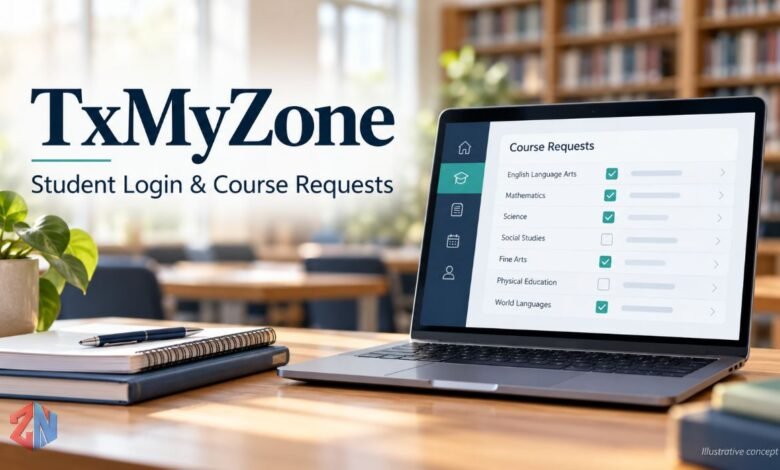
Historical TxEIS documentation describes TxMyZone as a student course-request application within the txSuite software suite. Its documented purpose was to help students at participating secondary campuses request classes for the following school year. Those requests then entered the school’s scheduling process.
If you are looking for your account, start with your school district’s official website. Searching the name alone can lead to articles, older instructions, or a similarly named content website instead of the portal your school expects you to use.
This guide explains the application’s role, how to approach course selection, what to do when access fails, and why current school instructions matter more than familiar branding.
What Is TxMyZone?
The clearest description is a student-facing course-selection tool associated with TxEIS and its txSuite applications. It helped collect students’ requests before schools completed their schedules; it should not automatically be described as an all-purpose learning platform.
There is also direct school evidence. Crystal City Independent School District’s parent information page labels a txMyzone link as “Student Course Request.” The same page provides ASCENDER portal information, illustrating how different software names can appear together on a district website.
For a student, the useful question is therefore specific: which application does my campus want me to use for this year’s course choices?
Quick Overview
| Question | Practical answer |
|---|---|
| What was its documented purpose? | Submitting next-year course requests |
| Which software environment was it associated with? | TxEIS and txSuite |
| Where should students find access? | Their school’s current official resources |
| Does the name identify one universal login? | Do not assume so; follow district instructions |
| Does submitting choices complete a timetable? | Requests and assigned classes are different stages |
The distinction between a request and an assignment appears in the TxEIS scheduling guide, which describes changing a course’s status when a section and semester are assigned.
Is TxMyZone Still Used in 2026?
School websites still display the name. Eastland High School‘s student resources list both txMyZone and Student Portal-Ascender. However, a visible menu entry does not establish that the older application is accepting requests for the current school year.
Treat an existing link as a starting point for verification. Check the current counseling announcement, course-selection notice, or student instructions before entering information.
Dates deserve particular attention. Jim Ned’s published TxMyZone instructions explicitly concern the 2020–2021 school year. They provide useful historical evidence, but their deadline and sign-in directions should not be presented as current guidance.
If two school pages disagree, ask the counseling office which instructions apply. Mention both page titles so staff can identify the outdated resource.
How to Find the Correct TxMyZone Login
Begin from the district website you already use for school announcements. Navigate through its student or counseling resources instead of choosing a search result only because the title contains the right keyword.
A practical approach is:
- Open your school’s official homepage.
- Look for Student Resources, Course Selection, Counseling, or StudentPortal.
- Read any instructions identifying the school year and eligible grades.
- Follow the portal link provided for your campus.
- Ask the school to confirm the address if the destination seems inconsistent.
Avoid treating another district’s login as interchangeable with yours. A working page can still be the wrong destination for your account.
Before signing in, compare the destination with the link supplied by your school. If an unexpected page asks for payment or information unrelated to the task, pause and confirm it with staff.
How Course Selection Worked
Historical Jim Ned instructions show a concrete workflow: students reviewed graduation-plan requirements, browsed subject tabs, selected preferred courses, and added alternatives. They also explained that some required courses could not be deleted.
These details describe one documented implementation. Your school’s current interface, permissions, and course offerings may differ, so use the following advice as preparation rather than a universal button-by-button tutorial.
Prepare Before Opening the Portal
Keep the current course catalog and your counselor’s instructions nearby. Make a draft list of subjects you need, electives you prefer, and questions you have not resolved.
Check course names carefully. Similar titles can refer to different levels or pathways. Ask about prerequisites, workload, and any separate application process before choosing an unfamiliar option.
For example, a student interested in a technical elective could ask whether it starts a sequence that continues the following year. That conversation can make the choice more useful than selecting a course because friends have chosen it.
Choose Alternatives Deliberately
A backup should be a class you would genuinely accept. Consider your interests and overall workload when deciding what to put next.
Keep a personal note explaining your priorities. If a counselor later asks which option matters most, you will have a clear answer instead of trying to reconstruct your decisions.
Review Before Submitting
Compare the final list with your draft. Check for accidental duplicates, missing subjects, and unwanted alternatives.
Jim Ned’s historical directions warned that students could not make changes through TxMyZone after submission. That makes careful review sensible, even when your present school uses a different system.
Keep any confirmation the school provides. If you need a correction, contact the counselor promptly and explain the requested change clearly.
Course Requests Are Not a Final Schedule
Think of your selections as information the school uses to build a timetable. The TxEIS guide separates collecting requests from assigning students to course sections and resolving scheduling conflicts.
For example, imagine that two preferred electives end up occupying the same period. Your request list communicates what you wanted, but the school still needs to resolve that clash.
When reviewing the eventual schedule, compare it with your submitted choices. If something differs, ask whether the change reflects a conflict, an eligibility issue, or another campus decision. Do not assume that every difference means your original submission failed.
TxMyZone and ASCENDER StudentPortal
ASCENDER StudentPortal’s official guide describes broader functions, including viewing attendance, grades, and assignments, alongside course requests and graduation planning. Access to particular information and actions depends on district or campus settings.
Those documented ASCENDER features should not automatically be attributed to every historical TxMyZone installation.
If your school directs you to ASCENDER StudentPortal, use that destination rather than searching for an older interface.
An old bookmark is convenient only while it remains correct. Update it after the school confirms a new address, and give the bookmark a clear name that includes your district.
Common Access and Course-Selection Problems
Different problems need different responses. Describe what you can actually see instead of reporting only that the portal “does not work.”
| Problem | Useful next step |
|---|---|
| The page will not open | Recheck the current district link and report the error |
| Sign-in details are rejected | Confirm the account instructions with school staff |
| A desired course is missing | Ask the counselor about availability and eligibility |
| Submitted choices cannot be edited | Request a correction through the counseling office |
| Only a confirmation screen appears | Ask whether submission is complete or access is view-only |
For ASCENDER specifically, the official guide explains that a confirmation-only screen can mean requests were already submitted or the campus changed access to view-only. This is not automatically a browser fault.
When requesting help, include your campus, the page name, the time of the problem, and the visible error message. Do not send a password. If you attach a screenshot, remove information the recipient does not need.
Is the Similarly Named TxMyZone Website the School Portal?
Do not assume that it is your school’s destination. The similarly named website describes itself as a blog and resource covering productivity, technology, lifestyle, and related subjects. Its About page also references academic topics in its footer. That content does not establish it as your district’s authorized login.
A website can publish information about student services without operating those services. The distinction matters when your goal is to access an account rather than read an article.
Conclusion
TxMyZone’s documented school role centers on course requests within the TxEIS environment. The most useful next step is to identify your campus’s current portal, prepare your course choices, and follow its submission instructions.
Keep historical guidance in context, review choices carefully, and contact your counselor when an account or scheduling question needs a school-specific answer.
Also Read: Nvidia Chip Guide: AI Power, Latest Models and China Rules
FAQ
What is TxMyZone used for?
Its documented educational purpose was to let students at participating secondary campuses request courses for the following school year. It formed part of the school’s scheduling workflow.
How do I find my TxMyZone login?
Use your district’s official website or the current instructions from your school. If you cannot identify the correct page, ask the counseling office to confirm it.
Can I change TxMyZone course requests after submitting?
Historical school instructions restricted changes after submission. Ask your counselor about corrections rather than assuming you can reopen and edit the request yourself.
Is TxMyZone the same as ASCENDER StudentPortal?
Historical documentation describes TxMyZone as a course-request application within txSuite. ASCENDER StudentPortal supports course requests alongside attendance, grades, assignments, and graduation planning. Do not assume that an older TxMyZone installation offered all these features; use the portal your school currently specifies.
Why does TxMyZone appear on different kinds of websites?
The name appears in school resources and on a similarly named informational website. Identify the operator and purpose of the specific page before treating it as your school portal.