

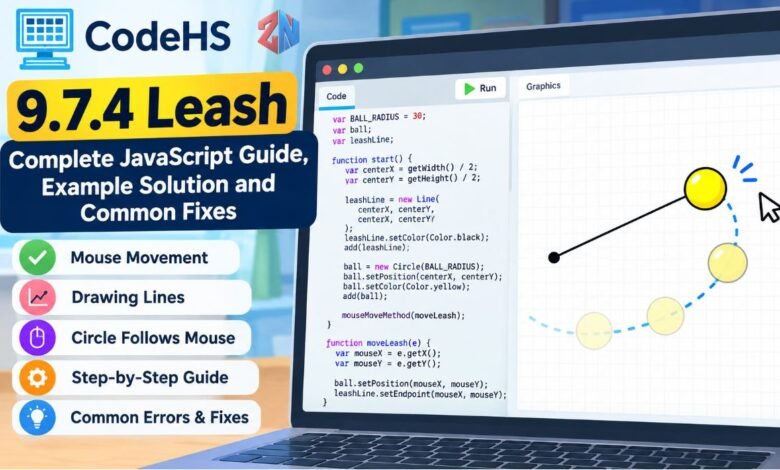
The 9.7.4 Leash exercise is a JavaScript graphics assignment on CodeHS that helps beginners understand mouse events, drawing lines, and controlling objects on a computer screen. The task involves creating a ball connected to a line, then making both respond correctly when the user moves the mouse.
Although the exercise looks simple, students sometimes struggle with coordinates, event handlers, and keeping the line attached to the moving ball. A small coding mistake can cause the ball to disappear, the line to remain stationary, or the entire program to stop responding.
This guide explains the exercise’s main graphics concepts, provides a practical JavaScript example, and shows how to identify common mistakes. It also explains the programming concepts behind the solution so students can apply them to future CodeHS assignments.
What Is 9.7.4 Leash in CodeHS?
9.7.4 Leash is a programming exercise included in the Drawing Lines lesson of the CodeHS Introduction to Computer Science in JavaScript curriculum.
The official CodeHS course outline identifies it as Exercise 9.7.4, following the introductory Drawing Lines activities.
Its purpose is to teach students how graphical objects interact with mouse movement. Rather than producing text output, the program creates shapes on a graphics canvas and changes their positions in response to user input.
The activity involves two main objects: a circle representing a ball and a line representing its leash.
In the example implementation below, the circle follows the mouse pointer, while one endpoint of the line stays fixed in the center of the screen. The other endpoint moves with the ball.
Key Details About the Exercise
| Feature | Details |
|---|---|
| Exercise name | 9.7.4 Leash |
| Learning platform | CodeHS |
| Programming language | JavaScript |
| Course | Introduction to Computer Science in JavaScript |
| Lesson | 9.7 Drawing Lines |
| Exercise type | Interactive graphics |
| Main objects | Circle and Line |
| Primary interaction | Mouse movement |
| Main concepts | Coordinates, events, and object positioning |
The exercise is about programming, not a physical dog leash or an animal-training regulation.
How Does the 9.7.4 Leash Exercise Work?
The basic idea involves creating a visual connection between a fixed position and a moving object.
In the example below, when the program starts, the ball appears in the center of the graphics canvas. A line also begins at that position, with its endpoint initially placed at the same coordinates.
Because both ends occupy the same location, the line may not be visible immediately.
As the user moves the mouse, the program detects the pointer’s coordinates and moves the ball accordingly.
At the same time, the line’s endpoint changes to match the ball’s new position. Its starting point remains fixed.
This creates the appearance of a ball connected to a stretching leash.
Understanding the Main Objective
The example implementation demonstrates three important behaviors:
- The ball begins at the center of the screen.
- The line starts at the center and remains anchored there.
- Moving the mouse changes both the ball’s position and the line’s endpoint.
The important detail is that the ball and moving endpoint must share the same coordinates.
Students should check their own CodeHS assignment instructions because course versions may contain different starter code or additional requirements.
9.7.4 Leash CodeHS JavaScript Example Solution
The following example demonstrates the core behavior using the CodeHS JavaScript Graphics environment.
It creates a ball and line, positions them at the center, and updates their locations whenever the mouse moves.
Example JavaScript Code
var BALL_RADIUS = 30;
var ball;
var leashLine;

function start() {
    var centerX = getWidth() / 2;
    var centerY = getHeight() / 2;

    leashLine = new Line(
        centerX, centerY,
        centerX, centerY
    );
    leashLine.setColor(Color.black);
    add(leashLine);

    ball = new Circle(BALL_RADIUS);
    ball.setPosition(centerX, centerY);
    ball.setColor(Color.yellow);
    add(ball);

    mouseMoveMethod(moveLeash);
}

function moveLeash(e) {
    var mouseX = e.getX();
    var mouseY = e.getY();

    ball.setPosition(mouseX, mouseY);
    leashLine.setEndpoint(mouseX, mouseY);
}
This is an illustrative implementation of the exercise’s described behavior, not a claimed official CodeHS answer key.
The code uses the established CodeHS Graphics methods for creating shapes, moving objects, and responding to mouse events. Your classroom version may require different names, colors, or starter-code conventions. This example uses the traditional CodeHS JavaScript Graphics environment with start(); some ES6-based courses use main() instead.
Step-by-Step Explanation of the Leash Program
Understanding how the program works is more useful than simply copying the code.
Each part has a specific responsibility.
Step 1: Define the Ball and Line Variables
The program begins by defining a ball radius and variables for the graphical objects.
The BALL_RADIUS variable controls the circle’s size.
The ball and leashLine variables are declared outside the functions so the setup function and mouse-event handler can access the same objects.
Without correctly shared variables, the event handler might attempt to modify an object that is unavailable in its scope.
Step 2: Find the Center of the Canvas
The program calculates the center using getWidth() and getHeight().
Dividing the width and height by two produces the coordinates of the center.
For example, a canvas measuring 400 pixels wide and 500 pixels tall has a center at (200, 250).
Using calculated coordinates instead of fixed numbers makes the example easier to adapt to different canvas sizes.
Step 3: Create the Leash Line
The Line constructor creates a graphical line using four values.
The first pair identifies its starting point, while the second pair identifies its endpoint.
Initially, both pairs are set to the canvas center.
The program then adds the line to the canvas.
When the mouse moves, only the endpoint changes, allowing the line to stretch between the fixed center and the ball.
Step 4: Create the Ball
The program creates a circle using the previously defined radius.
It places the circle at the canvas center and assigns it a yellow color.
The circle is added after the line so it can appear over the connection where they meet.
The program creates this ball only once. Future mouse movements reposition the existing object rather than generating additional circles.
Step 5: Register the Mouse Event
The mouseMoveMethod() function registers a callback that responds to mouse movement.
Whenever the user moves the pointer within the graphics area, CodeHS calls the registered function and supplies an event object.
That event contains information about the pointer’s location.
Passing the function name without parentheses is important because CodeHS needs a reference to the function, not an immediate function call.
Step 6: Update Both Objects
The event handler retrieves the pointer’s X and Y coordinates.
It then moves the ball to those coordinates using setPosition().
The line’s endpoint is updated using setEndpoint().
Because both objects receive identical coordinates, the moving endpoint remains connected to the center of the ball.
This shared-coordinate relationship is the central programming idea behind the activity.
Important JavaScript Graphics Functions
Several methods work together to create the interactive effect.
| Function or method | Purpose |
|---|---|
Circle(radius) |
Creates a circular object |
Line(x1, y1, x2, y2) |
Creates a line between two points |
getWidth() |
Returns the canvas width |
getHeight() |
Returns the canvas height |
setPosition(x, y) |
Positions the circle at specific coordinates |
setEndpoint(x, y) |
Updates the ending point of the line |
mouseMoveMethod() |
Registers a mouse-movement callback |
e.getX() |
Reads the mouse’s horizontal position |
e.getY() |
Reads the mouse’s vertical position |
add() |
Displays a graphical object |
These functions are useful beyond the Leash assignment. They provide the foundation for interactive drawings, simple animation projects, and mouse-controlled games.
Understanding Coordinates and Mouse Movement
One of the most valuable concepts in 9.7.4 Leash is the relationship between screen coordinates and graphical objects.
In the CodeHS graphics coordinate system, the top-left corner of the canvas is (0, 0).
The X coordinate increases as the position moves to the right. The Y coordinate increases as it moves downward.
Suppose the mouse moves to (280, 160).
The ball must move to those coordinates, and the line endpoint must also become (280, 160).
Meanwhile, the line’s original starting point remains unchanged.
This produces a visual connection between the stationary anchor and moving ball.
Why the Same Coordinates Matter
If the ball moves to (280, 160) but the line endpoint moves to (250, 160), a visible gap may appear.
The objects are no longer connected because their positions do not match.
The solution is to use the same mouse-coordinate values for both updates.
This principle also applies to other programming tasks involving connected or synchronized objects.
Common 9.7.4 Leash Errors and How to Fix Them
Even a short program can produce unexpected results. Most beginner problems involve event registration, object creation, or incorrect coordinates.
The Ball Does Not Move
If the ball remains stationary, check whether the mouse-movement callback has been registered.
Make sure the function name used in mouseMoveMethod() matches the actual handler.
Also verify that the handler calls setPosition() with the mouse coordinates.
The Line Does Not Follow the Ball
Sometimes the circle moves correctly while the line stays in its original position.
This usually indicates that the handler updates the circle but not the line endpoint.
Make sure the event handler updates both objects.
The Entire Line Moves
If both ends of the line move, the code may be changing the wrong part of the graphical object.
The CodeHS setEndpoint() method changes the line’s ending point.
For this example implementation, the starting point should remain anchored at the center.
Extra Circles Appear
Creating a new circle every time the mouse moves can leave multiple objects on the canvas.
Instead, create the circle during setup and update its existing position.
This keeps the graphics simpler and avoids unnecessary object creation.
An Undefined Variable Error Appears
JavaScript variables have scope rules that determine where they can be accessed.
If an object variable is declared only inside start(), a separate function may not be able to reference it.
Declare variables in a scope accessible to both functions and initialize them before registering mouse movement.
How to Test Your CodeHS Leash Program
Testing is an important part of understanding interactive graphics.
After running the program, check the initial position of the circle. It should appear at the canvas center.
Next, move the mouse toward different areas of the canvas.
The ball should follow the pointer, and the line should extend from its fixed starting position to the ball’s center.
Try moving the pointer horizontally, vertically, and diagonally.
If the ball follows correctly in one direction but not another, inspect how the event handler reads the X and Y coordinates.
Also check that moving the pointer does not produce extra objects.
A successful test confirms that the program updates existing graphics consistently while preserving the line’s fixed starting point.
Why Do Different CodeHS Leash Exercise Numbers Appear?
Students sometimes encounter different exercise numbers while searching for CodeHS Leash solutions.
The CodeHS curriculum includes multiple courses and organizational structures. The official course listings show that the Leash activity appears under different numbering systems.
For example, it appears as 9.7.4 in the 2022 Introduction to Computer Science in JavaScript curriculum and as 10.7.4 in Texas Computer Science 1.
Different numbering does not necessarily mean the underlying graphics concepts have changed.
However, students should compare assignment instructions rather than assuming that code written for another course version will automatically satisfy their current task.
What Can Students Learn Beyond This Exercise?
The Leash assignment introduces event-driven programming, a concept used in many interactive applications.
Instead of executing every action in a fixed sequence, an event-driven program responds when something happens.
Mouse movement is one example. Keyboard input, button clicks, and touchscreen interactions use related concepts.
The exercise also develops an understanding of graphical object references, variable scope, and coordinate systems.
Students who understand these principles can experiment with more advanced behaviors, such as changing a ball’s color when clicked, controlling objects with keyboard input, or creating interactive drawing programs.
The main goal is not memorizing one solution. It is learning how to connect user input with graphical changes.
Conclusion
The 9.7.4 Leash exercise introduces important JavaScript programming concepts through a simple interactive graphics task.
By creating a circle, drawing a line, and updating both objects through mouse events, students learn how coordinates, callbacks, and graphics methods work together.
In this example, successful implementation depends on keeping the line’s starting point fixed and updating its endpoint using the same coordinates as the ball.
Understanding these fundamentals makes debugging easier and provides a useful foundation for future CodeHS graphics and animation activities.
Also Read: icpfit: false Explained: Meaning, Causes and Smart Solutions
Frequently Asked Questions
What is 9.7.4 Leash in CodeHS?
9.7.4 Leash is a JavaScript graphics exercise in the CodeHS Drawing Lines lesson. A typical implementation creates a circle connected to a line and uses mouse movement to change the circle’s position and the line’s endpoint.
What is the solution to 9.7.4 Leash?
A typical solution creates a Circle and Line, places them at the canvas center, and registers a mouse-movement handler. The handler updates the circle with setPosition() and the line endpoint with setEndpoint() using identical mouse coordinates.
Why is my CodeHS Leash code not working?
Common causes include undefined variables, incorrect mouse-event registration, missing graphical objects, and coordinate mismatches. Check that both objects are created before the event handler updates them.
What does mouseMoveMethod do in JavaScript?
In the CodeHS Graphics environment, mouseMoveMethod() registers a function that runs when the user moves the mouse over the canvas. The function receives an event object containing the pointer’s location.
Why should the line and ball use the same coordinates?
Using identical coordinates ensures that the line’s moving endpoint remains connected to the center of the ball. Different coordinates can create a visible gap between the objects.
Is 9.7.4 Leash the same as other CodeHS Leash exercises?
Different CodeHS courses may assign different numbers to similar activities. Students should compare the actual instructions, graphics environment, and required behavior before using a solution from another course.